How to Manage Local Data and Storage When Running AI Tools on a Mac
Local AI tools fill a Mac faster than you'd expect. Here's how to monitor storage, organize datasets, and clean up safely without losing work.
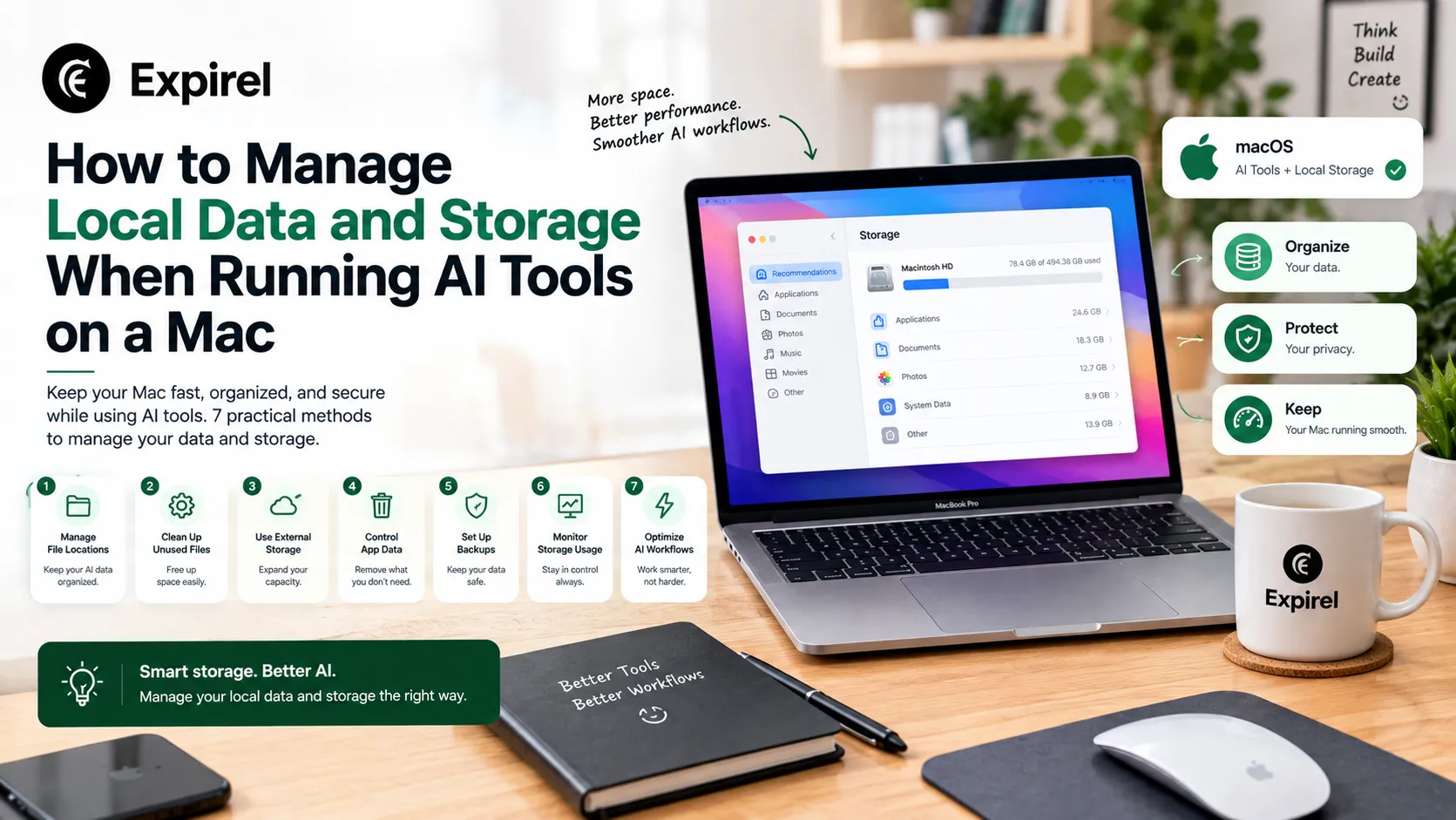
Running AI tools locally fills a Mac faster than everyday use does. Monitor storage before you delete anything, keep AI projects organized by date rather than by "final," "final2," move inactive data off the internal SSD, clean tool-specific caches selectively instead of on a fixed schedule, and keep a separate backup that isn't the same drive holding your only working copy.
Local AI work quietly accumulates downloaded models, datasets, processed data, checkpoints, Docker images, virtual environments, and generated outputs. Even a modest project adds up fast the widely used ILSVRC subset of ImageNet alone contains more than 1.28 million training images, and that's before you account for every checkpoint saved during training.
Running low on space doesn't just slow things down. It interrupts downloads mid-transfer, prevents files from being written, and causes training or export jobs to fail partway through, sometimes leaving a corrupted, half-written file behind. A handful of consistent habits prevent most of this before it happens.
Key Takeaways
Check what's actually using your storage before deleting anything; guessing wastes time and risks removing the wrong files.
Keep datasets, models, outputs, and project files organized so older or duplicate data is easy to identify at a glance.
Use a fast external SSD for large or inactive AI files, but treat that drive as separate from your actual backup.
Clean caches selectively, based on what's actually consuming space, rather than wiping cache folders on a fixed schedule.
Review old Docker images and development environments regularly; they consume storage quietly and are easy to forget about.
Leave enough free space for downloads, temporary files, and checkpoints your AI tools may need mid-run, not just for what you're using today.
7 Methods to Manage Local Data and Storage When Running AI Tools on a Mac
These seven cover the practical ground enough to keep AI-related files under control without turning your setup into a maintenance project of its own.
1. Check What Is Actually Using Your Storage
Start with macOS itself: Apple menu > System Settings > General > Storage shows how much space is available and which categories are using it. For deeper detail than the built-in view offers, Apple also documents additional steps to free up storage space on Mac directly.
For AI work specifically, look for old models, datasets, duplicate project folders, Docker data, and environments left over from projects you no longer touch. Tools such as DaisyDisk or OmniDiskSweeper give a more detailed visual breakdown when the built-in view isn't specific enough.
There's no universal amount of free space every Mac needs to maintain. Treating a rule like "always keep 15% free" as a hard requirement misses the point: leave enough headroom for your actual workload. Downloading a large model and writing checkpoints throughout training needs far more breathing room than running a small inference task.
2. Keep AI Projects Organized
A consistent folder structure is what makes the difference between spotting what to delete in thirty seconds and spending an afternoon guessing.
A simple setup separates raw data, processed data, models, outputs, and project files into their own spaces. Avoid unnecessary duplicate copies of the same dataset if several projects pull from the same source data, keep one master copy and write down where it actually lives, not just where you remember putting it.
Use dates or version numbers on datasets and models. Folders named "final," "final2," and "final-new" are functionally indistinguishable six months later; a date or version number never is.
3. Move Large, Inactive Data to an External SSD
An external SSD is the easiest way to create real working room without replacing the Mac itself. Keep active files on the internal SSD where speed matters most, and move archived datasets, completed models, old checkpoints, and large outputs to external storage.
For a drive used only with Macs, APFS is generally the sensible format. If the same drive also needs to work with Windows machines, exFAT offers broader compatibility across both.
Reformatting erases the drive. If an external drive stops appearing and the files on it actually matter, don't reach for reformatting first — try a different cable, port, or computer. If the problem persists, take a cautious approach to recover files rather than a step that risks overwriting the data you're trying to save.
An external working drive is not a backup on its own. Anything that actually matters needs to exist somewhere else too.
4. Clean Caches Selectively, Not on a Schedule
AI applications routinely cache downloaded models, datasets, packages, or compiled files so they don't have to rebuild or redownload them every run. These caches grow large, but wiping every cache folder on a fixed weekly schedule is unnecessary and occasionally counterproductive.
Avoid broad commands that erase everything inside system or user cache folders indiscriminately. Instead, identify which specific application is consuming the space and use that tool's own model manager or cleanup option where one exists.
A practical routine: check storage, find the large tool or folder responsible, remove what you recognize as obsolete, then check storage again to confirm it actually freed what you expected. macOS also manages some temporary and cache data automatically in the background, so not everything needs manual intervention.
5. Use Cloud Storage for Archives and Collaboration
Cloud storage suits completed projects, backups, shared datasets, and anything you don't need open every day. Services like iCloud Drive, Dropbox, Google Drive, or Amazon S3 keep inactive material off the Mac entirely. Where available, online-only or selective-sync options avoid pulling everything back down locally.
For most local AI workflows, though, working directly against files that constantly travel over the internet is slower and less predictable than reading from an internal or fast external SSD. The practical pattern: keep active data local while you're working on it, then archive it again once the project wraps.
Worth knowing: cloud apps can still keep recently used files cached locally, so "it's stored in the cloud" doesn't always mean zero local disk usage check the app's own sync settings if space isn't freeing up the way you expected.
6. Review Docker and Old Development Environments
Development tools quietly become major storage consumers over time. Docker retains images, stopped containers, and build cache until something explicitly removes them none of it disappears on its own.
Start by reviewing what Docker is actually using. Docker Desktop lets you inspect images and containers visually, while running docker system df from Terminal shows Docker's disk usage directly. Remove what you recognize as obsolete, and be careful with docker system prune -a specifically, it can remove unused images well beyond simple temporary cache, including ones you may want again.
Old Python or Conda environments accumulate the same way. If a finished project can be recreated from a requirements or environment file, removing its unused environment is usually the better call than keeping it indefinitely just in case. If you want an environment available on another drive, recreate it there rather than trying to move an existing Python virtual environment wholesale.
7. Back Up Your Work, and Troubleshoot the Right Problem
Use Time Machine or another backup system for anything that actually matters. Apple recommends a dedicated Time Machine disk, with APFS preferred for new Time Machine backup drives specifically. Keep that backup separate from any external SSD that's also holding your only working copy of a dataset — combining the two defeats the purpose of having a backup at all.
Disk Utility's First Aid is worth reaching for when you see actual signs of a filesystem or disk problem — corrupted files, an external drive behaving inconsistently. It's a troubleshooting tool for when something's actually wrong, not something to run on a monthly schedule out of habit.
If Finder shows error code -36 while copying, moving, or deleting files, don't assume low storage is automatically the cause — it can just as easily involve problematic files, permissions, or an external drive issue. If that's the error you're seeing, there's a fix automatically on Mac alongside manual troubleshooting options worth working through in order.
A Quick Monthly Health-Check Framework
Rather than reacting only when storage runs out, run this in five minutes once a month:
1. Open Storage settings and note what changed since last time; a category growing fast is worth investigating immediately, not at the next crisis.
2. Scan for duplicate or "final2"-style folders in active AI project directories and consolidate them.
3. Run docker system df if you use Docker, and clear anything clearly stale.
4. Check for finished projects still sitting on the internal SSD that should have moved to external storage or archive already.
5. Confirm your last backup actually completed rather than assuming Time Machine is running because it usually does.
Mistakes People Make Managing AI Storage on a Mac
Deleting first, checking later. Removing files based on a guess about what's large risks losing something you needed; always confirm what's actually consuming space first.
Wiping entire cache folders on a schedule. This regularly triggers large re-downloads or rebuild work that costs more time than the cleanup saved.
Treating an external SSD as a backup. A single drive holding your only copy of something important isn't a backup — it's just relocated risk.
Running docker system prune -a without checking first. This removes unused images beyond simple cache, sometimes ones still needed for an active project.
Assuming storage errors are always a storage problem. Error code -36 and similar Finder errors are frequently about permissions or a specific problematic file, not free space.
The Same Habit That Prevents Digital Clutter Prevents Real-World Clutter Too
The pattern underneath most of this guide isn't really about AI tools specifically; it's about reviewing on a schedule instead of only reacting once something runs out. That's the same principle behind tracking expiry dates on food, subscriptions, or household items: a scheduled check catches the problem while it's still small, instead of discovering it after the fact. Expirel applies that same recurring-review habit to physical and subscription tracking: the monthly storage health check above and a recurring expiry reminder are solving the same underlying problem in different domains: things quietly go stale or pile up when nothing prompts a regular look.
Conclusion
Managing AI storage on a Mac comes down to a handful of habits repeated consistently rather than a single big cleanup done once things get bad: check what's actually using space before deleting anything, keep projects organized by date instead of by "final" and "final2," move inactive data to external storage while keeping backups genuinely separate, and clean caches based on what's actually growing rather than on a fixed schedule. None of this is complicated on its own. What actually prevents the problem is doing it on a schedule you keep, rather than only when a training job fails and forces the issue.
Frequently Asked Questions
Q: How much storage do I need to run AI tools on a Mac?
There's no universal minimum. A 256 GB Mac can handle lightweight development and smaller local models, especially paired with external or cloud storage. 512 GB is a more practical starting point for keeping several models and environments locally without constant shuffling. Large datasets, Docker-heavy workloads, or frequent training runs can justify 1 TB or more.
Q: What kind of external drive is best for AI data?
For active projects, a fast external SSD beats a mechanical hard drive. A modern SSD connected through USB-C or Thunderbolt handles datasets and large project files well. HDDs still have a place for inexpensive archives and secondary backups where speed doesn't matter.
Q: Can I run AI tools directly from an external SSD?
Yes. Many workflows can read datasets and models directly from a fast external SSD without issue. Performance depends on the drive, the connection type, and the workload, so keep speed-sensitive files on the internal SSD if external storage starts becoming a bottleneck.
Q: How often should I clear AI caches?
There's no need to clear them weekly. Inspect caches when storage grows unexpectedly, or after you're done with a large model or project. Deleting a cache prematurely can trigger a large re-download or rebuild later, which often costs more time than it saved.
Q: What happens if my Mac runs out of space during an AI job?
A process trying to write a checkpoint, temporary file, log, or output can fail mid-write. The job stops, and whatever file was being written at that exact moment may end up incomplete or corrupted. Checking available storage before a long job and keeping important project data backed up regardless avoids losing real work to this.