Productivity Software Examples for 2027: Types, Uses and Best Picks
See productivity software examples for 2027 by type, use, and audience: students, business, personal and tracking, plus what is changing with AI.
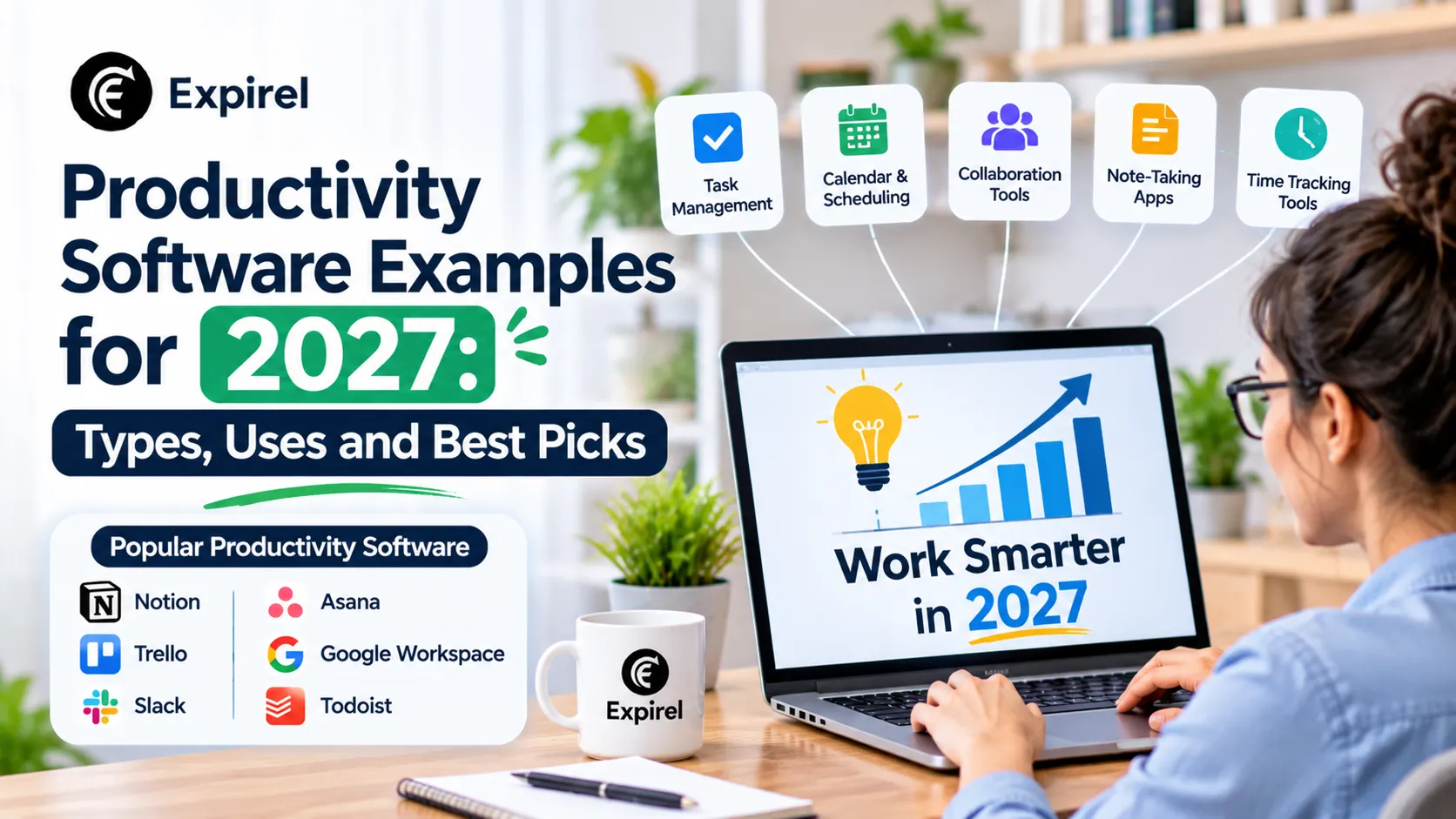
Most people already use productivity software every day without calling it that. The document you wrote this morning, the spreadsheet you checked at lunch, and the calendar that reminded you about a call are all examples. The harder question is which tools you actually need, and which ones only add clutter.
As 2027 approaches, many people are rebuilding their toolkits, and the market is changing fast because AI is now built into most suites. This guide gives you clear productivity software examples for 2027, sorted by type, use, and audience. You will see what the term means in computing, which apps fit students, businesses and individuals, how productivity tracking software works, and how to choose without wasting money. You will also get a quick-reference table you can save as a PDF, and a section on what is likely to change in 2027, with the facts and our analysis kept separate.
What Is Productivity Software, With Examples?
Productivity software is a category of application software that helps people create, organize, and manage work such as documents, spreadsheets, presentations, notes, tasks, and schedules. Classic examples include Microsoft Word, Excel and PowerPoint, Google Docs, Sheets and Slides, LibreOffice, Apple Pages, Numbers and Keynote, Outlook, OneNote and Notion.
Here are the core examples in one view:
Type | What it does | Common examples |
|---|---|---|
Word processing | Creates and edits written documents | Microsoft Word, Google Docs, Apple Pages, LibreOffice Writer |
Spreadsheets | Calculates and organizes data in rows and columns | Microsoft Excel, Google Sheets, Apple Numbers, LibreOffice Calc |
Presentations | Builds slides for talks and reports | Microsoft PowerPoint, Google Slides, Apple Keynote, LibreOffice Impress |
Email and calendar | Handles messages and schedules | Outlook, Gmail, Google Calendar, Apple Calendar |
Notes and tasks | Captures ideas and tracks to-dos | OneNote, Notion, Todoist, Microsoft To Do |
Project and team tools | Coordinates shared work | Asana, Trello, monday.com, ClickUp |
If you want depth on any single type, keep reading. Each section below explains the use, gives examples, and shares a practical tip.
Productivity Software Definition (and What It Means in Computing)
The plain-English definition
Productivity software helps you finish work faster, with fewer mistakes and less manual effort. It turns slow tasks, such as retyping a report or adding a long column by hand, into quick ones.
The definition in computer science
In computing, productivity software is a type of application software. Application software helps users do specific tasks. System software, such as Windows, macOS or Android, runs the computer itself. TechTarget’s definition of productivity software frames it as a family of programs for producing everyday work files, such as text documents, data tables, charts and slide decks. Britannica’s overview of software and its main types explains the wider split between system and application software.
Many textbooks use "productivity applications" and "productivity application software" for the same idea. In class notes, you will usually see four core types: word processing, spreadsheet, presentation, and database software.
Software type | Job | Examples |
|---|---|---|
System software | Runs the hardware and other programs | Windows, macOS, Linux, Android |
Application software | Helps users do specific tasks | Browsers, games, media players, productivity software |
Productivity software | A group of application software for creating and managing work | Word, Excel, PowerPoint, Google Docs, Notion |
Narrow and broad definitions
The term has two common meanings:
Narrow (office suite): Word processors, spreadsheets, presentation programs and databases.
Broad (any work-helping app): Also includes email, calendars, chat, task managers, project tools, note apps and time trackers.
This article uses the broad meaning, because that is how people shop for tools today.
General-purpose versus specialized software
General productivity software application examples work in almost any job. A word processor helps a nurse, a lawyer, and a student alike. Specialized software, such as hospital records, accounting systems or design tools, serves one field. Start with general-purpose tools, and add specialized ones only when a job needs them.
Where "productivity" itself comes from
The word comes from economics. The U.S. Bureau of Labor Statistics defines labor productivity as real output per hour worked, as explained in its concepts guide to productivity measurement. For personal use, the idea is simple: how much useful work you finish compared with the time and effort you spend. Good software raises that ratio. Poor software lowers it by adding steps. If you want a deeper explanation, see our guide on what changed in productivity tools and what to expect next.
Types of Productivity Software With Examples and Uses
Here are the main types, one by one. Each includes common file types, because file compatibility affects real work more than most people expect.
1. Word processing software
Use: Writing letters, reports, essays, contracts and manuals. You can format text, add images, check spelling and track changes.
Examples: Microsoft Word (.docx), Google Docs (stored in Google Drive, exportable as .docx or PDF), Apple Pages (.pages), LibreOffice Writer (.odt).
Tip: If you share documents with people outside your team, export a PDF for the final version. It keeps the layout the same on every device.
2. Spreadsheet software
Use: Budgets, schedules, grade books, sales reports, and any task that needs formulas or charts. When one cell changes, every cell that depends on it updates.
Examples: Microsoft Excel (.xlsx), Google Sheets, Apple Numbers (.numbers), LibreOffice Calc (.ods).
Tip: A spreadsheet is a great start, but it can become hard to manage as a business grows. Our guide to business tools that replace heavy spreadsheets shows when to move on.
3. Presentation software
Use: Slides for meetings, lessons, pitches and reports.
Examples: Microsoft PowerPoint (.pptx), Google Slides, Apple Keynote (.key), LibreOffice Impress (.odp).
Tip: Put one idea on each slide. Use the slide for the point, and your voice for the detail.
4. Database software
Use: Storing structured information that you search, sort, and report on, such as customers, inventory, or student records.
Examples: Microsoft Access (.accdb), LibreOffice Base (.odb), and spreadsheet-database hybrids such as Airtable.
Tip: Use a spreadsheet for small lists. Move to a database when many records link to each other.
5. Email and calendar software
Use: Sending messages, scheduling meetings and setting reminders.
Examples: Outlook, Gmail, Apple Mail, Google Calendar, Apple Calendar.
Tip: Put every deadline in your calendar, not only meetings. A task with no date is easy to forget.
6. Notes and knowledge software
Use: Capturing ideas, meeting notes, research and reference material.
Examples: Microsoft OneNote, Notion, Obsidian, Evernote, Apple Notes. For a full comparison, see our roundup of 34 organization apps compared.
Tip: Keep notes (information) and tasks (actions) in different places. Mixing them hides both.
7. Task and to-do software
Use: Tracking what you need to do, with due dates, priorities and repeating tasks.
Examples: Todoist, TickTick, Microsoft To Do, Things (Apple devices only).
Tip: Write tasks as actions: "Email Sara the budget draft," not "Budget."
8. Project and workflow software
Use: Planning shared work, assigning tasks and tracking progress across a team.
Examples: Asana, Trello, monday.com, ClickUp, Jira.
Tip: One owner per task. Shared ownership usually means no ownership.
9. Communication and meeting software
Use: Chat, video calls, and file sharing.
Examples: Slack, Microsoft Teams, Zoom, Google Meet, Google Chat.
Tip: Agree on response times. Not every message is urgent, and constant pings break focus.
10. PDF and document tools
Use: Reading, annotating, merging and signing PDF files, and collecting e-signatures.
Examples: Adobe Acrobat, Foxit PDF tools, Apple Preview (on Mac), DocuSign for e-signatures.
Tip: Many browsers and operating systems open PDFs for free. Buy a PDF editor only if you edit or sign often.
11. Cloud storage and file sharing
Use: Storing files online and sharing them with others.
Examples: OneDrive, Google Drive, Dropbox, iCloud Drive.
Tip: Agree on one folder structure and one naming rule. Search works better when files have clear names.
12. Time and productivity tracking software
Use: Measuring where time goes and whether goals are being met. See the dedicated section below.
Examples: Toggl Track, Clockify, Harvest, plus the dashboards inside Asana or ClickUp.
13. Focus and habit tools
Use: Building routines and protecting attention, such as with timers, streaks and reminders.
Examples: Pomodoro timers, focus apps and habit trackers. Compare habit tracking apps if you want something beyond a simple checklist.
14. Automation and AI tools
Use: Connecting apps, running repeat steps automatically, and drafting or summarizing content.
Examples: Zapier, Make, Microsoft Power Automate, Microsoft Copilot, Gemini in Google Workspace, and general AI assistants such as ChatGPT and Claude.
Tip: Automate a task you already do by hand and understand well. Never automate a process you do not understand yet.
Office Productivity Software Examples for 2027: Suites Compared
An office suite bundles several tools under one account. For many people, a suite is all they need. Prices and plans change often, so we compare the fit, not the cost.
Suite | Core apps | Best for | Watch out for |
|---|---|---|---|
Microsoft 365 | Word, Excel, PowerPoint, Outlook, OneNote, OneDrive (Teams on many plans) | Workplaces that exchange Office files daily | Plans differ by app, so check what your license includes |
Google Workspace | Docs, Sheets, Slides, Gmail, Calendar, Drive, Meet | Real-time team editing and browser-based work | Advanced spreadsheet features can feel lighter than Excel |
Apple iWork | Pages, Numbers, Keynote | Mac, iPhone and iPad users, free with Apple devices | Fewer team features, and export is needed for non-Apple users |
LibreOffice | Writer, Calc, Impress, Draw, Base | A free, open-source option from The Document Foundation | Formatting can shift when you open some complex Microsoft files |
Zoho Workplace | Writer, Sheet, Show, Mail, WorkDrive | Small businesses that want an all-in-one bundle | A smaller ecosystem of outside integrations |
You can learn more about the free open-source option on the official LibreOffice site.
How to choose an office suite
Follow your partners. If clients and coworkers send Microsoft files, use Microsoft or a tool that opens them well.
Check your devices. Apple-only suites are weak if you also use Windows or Android.
Test file exchange. Send yourself a complex document and open it in your chosen tool before you commit.
Check what you already own. Many schools and employers provide Microsoft or Google accounts. Ask first.
Productivity Software Examples for Students in 2027
Students need three things: write well, stay organized and study effectively. A simple stack beats a long list.
Student need | Good examples | Why they help |
|---|---|---|
Writing assignments | Google Docs, Microsoft Word, Apple Pages | Spell check, comments, easy sharing |
Calculations and data | Google Sheets, Microsoft Excel | Graphs and formulas for labs and projects |
Presentations | Google Slides, PowerPoint, Keynote | Group work and class talks |
Class notes | OneNote, Notion, Apple Notes, Notability or GoodNotes on iPad | Organized by course, searchable |
Sources and citations | Zotero | A free, open-source tool that saves sources and builds bibliographies |
Planning deadlines | Google Calendar, Todoist, Microsoft To Do | Reminders and weekly views |
Memorization | Flashcard apps such as Anki | Spaced repetition for exams |
Focus | Timers, app blockers | Short study blocks with breaks |
You can learn more about Zotero on its official website.
A simple weekly student workflow
Sunday (20 minutes): Check the calendar, add new deadlines and list your top three tasks.
Daily: Take notes in one place. After class, turn action items into tasks.
Before exams: Make flashcards from your notes, not from the textbook, and test yourself.
Every month: Back up your files and clear old tasks.
Mistakes students make with software
Using a different app for every class.
Writing papers without saving sources as they go.
Letting notifications run all day during study sessions.
Starting a new system in exam week.
For more detail by need, see our guide to the top 10 productivity apps for students, by need. Medical students have extra needs, such as patient privacy and heavy reading loads, and our guide to the stack for medical school covers them. Students who want to build skills with small daily practice can also try short daily learning apps.
Business Productivity Software Examples for 2027
Businesses need tools that many people can use together. The best choice depends on how work flows through your company.
Business job | Example tools | What to look for |
|---|---|---|
Documents and email | Microsoft 365, Google Workspace, Zoho Workplace | Shared editing, admin controls, security |
Team chat and calls | Slack, Microsoft Teams, Zoom | Search, integrations, channel organization |
Projects and tasks | Asana, Trello, monday.com, ClickUp, Jira | Clear owners, due dates, simple views |
Knowledge and wikis | Notion, Confluence, Google Docs | Easy search, version history |
Contracts and signatures | DocuSign, Adobe Acrobat | Audit trail, templates |
Automation | Zapier, Make, Power Automate | Reliable triggers, error alerts |
Dates and compliance | A tracker for renewals, licenses and stock expiry | Alerts ahead of deadlines |
By business size
Solo and very small teams: One office suite, one task app and a calendar. Avoid large platforms you will not use.
Growing teams (5 to 30 people): Add a shared project tool and written rules for where work lives. Assign one person to own the tool stack.
Larger companies: Focus on integration, permissions, and reporting. Many problems here come from unclear ownership, not missing software.
Business examples by role
Marketing: Calendars, design tools and schedulers. See our list of tools that speed up social media routines.
Sales: CRMs and admin-saving tools. See tools that cut admin work for sales reps.
Managers: Project boards and meeting notes. See these practical ways to help a team finish more.
Operations and retail: Checklists, inventory tools and expiry tracking, with business features for shared tracking.
Do not forget the dates that cost money
Every software subscription has a renewal date. Teams often forget them, so they pay for unused seats or lose access in the middle of a project. Keep one list of tools, owners, and renewal dates, and set reminders in advance. A tracker with email and WhatsApp reminders works well for this.
Personal Productivity Software Examples
Personal productivity software helps you manage your own life: tasks, goals, money, health, and learning. You do not need to copy a company setup.
Personal need | Example tools |
|---|---|
Tasks and reminders | Apple Reminders, Google Tasks, Todoist, Microsoft To Do |
Notes and ideas | Apple Notes, OneNote, Notion, Obsidian |
Calendar | Google Calendar, Apple Calendar |
Habits and routines | |
Goals | |
Files and photos | Google Drive, iCloud, OneDrive |
Household dates (warranties, food, documents) | Family sharing in Expirel for shared tracking |
A three-app personal stack
A calendar for anything with a time.
A task app for anything you must do.
A notes app for anything you want to remember.
Add a fourth tool only if it solves a problem you can name.
Productivity Tracking Software Examples
Productivity tracking software measures how time, tasks, and goals turn into results. It answers questions like: where did my week go, and did my routines hold?
Types of tracking software
Type | What it tracks | Examples |
|---|---|---|
Time trackers | Hours by task, project or client | Toggl Track, Clockify, Harvest |
Task and project analytics | Completed tasks, delays, workload | Asana, ClickUp, Jira dashboards |
Habit and goal trackers | Streaks, daily routines, progress | Habit tracking apps, goal apps |
Team workload tools | Capacity and utilization | Resource planning tools in project suites |
Employee monitoring tools | Activity on devices | Use with care (see below) |
For personal use, a time tracker and a habit tracker are often enough. Clear visual progress dashboards make trends easier to see.
Measure results, not surveillance
Tracking works best when it measures outcomes, such as work delivered and quality, rather than watching every click. Heavy monitoring often lowers trust and does not prove real output. Regulators have raised concerns too. The UK Information Commissioner’s Office published guidance in 2023 that says monitoring should be fair, transparent and proportionate. Local laws vary, so check the rules where you operate.
Three rules for fair tracking
Tell people what you track and why.
Track the least data you need.
Use the data to remove obstacles, not to punish.
For a practical view of team data without invading privacy, read about turning workforce data into better decisions.
Productivity Software Examples and Uses at a Glance
This table works as a quick reference for exams, onboarding and tool choices.
Example | Main use | Everyday scenario |
|---|---|---|
Microsoft Word | Write and format documents | A student writes an essay |
Google Docs | Edit documents together online | A team drafts a proposal |
Microsoft Excel | Calculate and chart data | A small shop tracks monthly sales |
Google Sheets | Share live spreadsheets | A club tracks member dues |
PowerPoint | Build slide decks | A manager presents quarterly results |
Outlook | Email, calendar and tasks | A professional schedules a client call |
OneNote | Organize notes in notebooks | A student keeps lecture notes by course |
Notion | Notes, databases and wikis | A startup keeps its handbook |
Todoist | Track tasks and due dates | A freelancer plans the week |
Trello | Visual task boards | A small team runs a content calendar |
Asana | Plan and track projects | An agency manages client work |
Slack | Team chat | A remote team shares quick updates |
Zoom | Video meetings | A tutor teaches online |
Adobe Acrobat | Read, edit and sign PDFs | A landlord signs a lease |
Toggl Track | Track time by project | A consultant bills hours |
Zapier | Connect apps automatically | A shop sends form entries to a spreadsheet |
Productivity Software Examples PDF: A Quick Reference You Can Save
Many people search for a PDF of productivity software examples because they want a short list for study or training. You can make one from this page in a few seconds.
Scroll to the tables in this article, especially the core examples, the office suite comparison, and the uses table above.
Open your browser’s print option.
Choose "Save as PDF" as the destination.
Select only the pages you need, then save.
Here is a one-page cheat sheet you can copy:
Definition: Productivity software is application software that helps people create and manage work.
Four classic types: word processing, spreadsheet, presentation, and database software.
Modern additions: email and calendar, notes, tasks, project tools, communication, tracking and automation.
Word examples: Microsoft Word, Google Docs, Apple Pages, LibreOffice Writer.
Spreadsheet examples: Excel, Google Sheets, Apple Numbers, LibreOffice Calc.
Presentation examples: PowerPoint, Google Slides, Keynote, LibreOffice Impress.
Database examples: Microsoft Access, LibreOffice Base.
Suites: Microsoft 365, Google Workspace, Apple iWork, LibreOffice, Zoho Workplace.
How to Choose Productivity Software for 2027: A Six-Step Method
Lists of examples are useful, but a method helps you decide. Follow these six steps.
Step 1: Name the job
Write the main task in one sentence: "I need to share reports with clients," or "I need to track assignments." The job decides the type of tool.
Step 2: Check what you already have
Look at your school, work, and device accounts. You may already have Word, Google Docs, or Apple Pages at no extra cost.
Step 3: List your devices
Make sure the tool works on every device you use daily. Apple-only tools fail if you also use Windows.
Step 4: Decide if you share work
If other people must edit, pick a tool they already use. Shared work needs a common format.
Step 5: Count the full cost
Include extra users, add-ons, storage, AI features, and your own setup time. Free plans may limit projects, history, or sharing.
Step 6: Run a two-week trial
Use the tool for real work, not sample tasks. Ask: did it save time after setup? Would I miss it if it disappeared?
Scorecard before you commit
Check | Question | Red flag |
|---|---|---|
Fit | Does it solve my named job? | I am buying it because it looks good |
Compatibility | Can I open and share the files I need? | Formatting breaks when I share |
Ease | Can I learn it in an hour? | It needs a weekend of setup |
Exit | Can I export my data? | My work is locked in |
Cost | Is the full price clear? | Surprise fees or usage charges |
Privacy | Do I know where data is stored? | Unclear data use for training |
Sample Stacks You Can Copy
Profile | Core stack | Add only if needed |
|---|---|---|
Student | Google Docs or Word, a notes app, a calendar, Zotero | Flashcards and a focus timer |
Freelancer | Office suite, task app, time tracker, e-signature tool | An invoicing tool |
Small business owner | Office suite, chat, project board, renewal tracker | Automation and CRM |
Team lead | Project tool, chat, shared knowledge base | Workload and analytics tools |
Family or household | Shared calendar, shared lists, a date tracker | A chore app |
How AI Is Changing Productivity Software Going Into 2027
Most major suites now include built-in AI assistants. Microsoft’s own Copilot release notes show a steady stream of new features, and Google describes its agent features in its post Welcome to Gemini at Work 2026. For a deeper look at what changed and what to check before you use it, read our guide to how AI agents changed these suites in 2026. You can also see the wider picture in the biggest productivity shifts of 2026.
Safe ways to use AI in your software
Review every output. AI can sound confident and still be wrong.
Start with drafts. Let AI write a first version, and you edit it.
Protect private data. Do not paste confidential information into tools your organization has not approved.
Check the cost. Some AI features are add-ons or use metered credits.
What to Expect From Productivity Software in 2027
Nobody can see 2027 yet. So here we separate what vendors and analysts have already said from our own analysis.
What is already confirmed in 2026
Agents are moving into the suites. Microsoft is folding its Copilot agents into a single Plugins area and adding admin reports on agent use, as its release notes show. Google introduced a Gemini agent that works inside Gmail, Docs, Sheets and Calendar, as described in its Gemini at Work 2026 announcement.
Pricing is becoming usage-based for some AI work. Notion explains that its Custom Agents run on credits tied to how much work they do, in its post introducing Custom Agents.
Analysts expect fast change and many failures. Gartner predicts that a third of enterprise software applications will include agentic AI by 2028, and that over 40 percent of agentic AI projects will be canceled by the end of 2027, as stated in its agentic AI forecast.
Our analysis: what this likely means for your software
These points are our reading of the evidence, not guarantees.
Likely change | What it means for you | What to do now |
|---|---|---|
AI assistants inside every suite | Word, Docs, Excel and Sheets will draft, summarize and clean data for you | Test one AI feature on one repeated task, and review every result |
More metered pricing | Some costs will depend on how much AI work you run | Set a monthly budget and track the cost per task |
Stronger admin controls | Companies will see and limit what agents can access | Start with read-only access and approvals |
Voice and natural-language input | Fewer menus, faster capture | Try voice capture for tasks and notes |
Fewer, bigger platforms | Suites will absorb notes, tasks and chat | Remove overlapping apps before you add new ones |
Habits matter more than features | Good tools cannot fix unclear goals | Keep a weekly review and a simple tracker |
A pre-2027 software checklist
List every tool you pay for, with its renewal date and owner.
Cancel or downgrade anything unused in the past 30 days.
Pick one AI feature to pilot, and measure time saved against cost.
Set reminders for renewals that fall in January and February.
Write a one-page rule for your team or household: what goes where, and who approves what.
Common Mistakes When Choosing Productivity Software
Buying features you will not use. Start with the job, not the feature list.
Using too many tools. Overlapping apps split your information across places.
Ignoring file compatibility. Test sharing before you commit.
Skipping training. A tool nobody understands becomes shelfware.
Treating free as zero cost. Free plans can limit sharing, history, or storage.
Not reviewing renewals. Auto-renewals add up quietly.
Measuring activity instead of results. Hours online do not equal progress.
Never cleaning up. Old projects and files make tools harder to use.
Your 7-Day Plan to Prepare Your Software Stack for 2027
Day 1: Write the three main jobs you need software for.
Day 2: List the tools you already have access to, and what they cost.
Day 3: Choose one tool each for documents, tasks, and notes. Remove duplicates.
Day 4: Set up a simple folder structure and naming rule.
Day 5: Move your next 30 days of deadlines into your calendar.
Day 6: Add renewal dates for every subscription to one list, with reminders.
Day 7: Do a short review. Write down what felt slow, and fix only that.
Final Thoughts
The best productivity software examples for 2027 are the ones that match your work, fit your devices, and make life simpler, not busier. Start with the job you want to do, use what you already own, test before you pay, and review your tools every few months. As AI becomes part of every suite, the winners will be the people who test carefully, measure results and keep their stack small. If you build good routines around a few tools, you will get more done than someone with a long list of apps. For more practical guides on routines, focus and smarter tools, explore the latest articles on the Expirel blog.
Note: Product names are examples for educational purposes. Features, plans, and prices change often, so confirm details on each official website before you decide.
Frequently Asked Questions
Q: What is productivity software?
Productivity software is application software that helps people create, organize, and manage work, such as documents, spreadsheets, presentations, notes, tasks, and schedules.
Q: What are examples of productivity software?
Examples include Microsoft Word, Excel and PowerPoint, Google Docs, Sheets and Slides, Apple Pages, Numbers and Keynote, LibreOffice, Outlook, OneNote, Notion, Todoist, Trello and Asana.
Q: What is the definition of productivity software in computer terms?
In computing, productivity software is a category of application software, as opposed to system software. It helps users produce documents, spreadsheets, presentations and databases, and it often includes email, calendars and collaboration tools.
Q: What are productivity applications?
Productivity applications are individual programs or apps that help you do work, such as a word processor, a spreadsheet program or a task manager. A group of them sold together is called an office suite.
Q: What are the best productivity software examples for students?
A good student stack includes a word processor such as Google Docs or Word, a notes app such as OneNote or Notion, a calendar, a citation manager such as Zotero, and a task app. Keep it to a few tools you will use every week.
Q: What are examples of business productivity software?
Common examples include Microsoft 365, Google Workspace, Slack, Microsoft Teams, Zoom, Asana, Trello, monday.com, Notion, DocuSign and automation tools such as Zapier.
Q: What is personal productivity software?
Personal productivity software helps individuals manage their own tasks, notes, calendars, habits and goals. Examples include Apple Reminders, Todoist, OneNote, Google Calendar and habit tracking apps.
Q: What is productivity tracking software?
Productivity tracking software measures time, tasks, habits, or goals. Examples include time trackers such as Toggl Track and Clockify, project analytics inside tools like Asana, and habit trackers. Measure results, and tell people what you track.
Q: Is a web browser productivity software?
A browser is application software, but it is usually grouped with internet tools rather than productivity software. Web-based apps that you open in a browser, such as Google Docs, are productivity software.
Q: What is the difference between productivity software and productivity tools?
The terms overlap. "Productivity software" often means programs such as office suites, while "productivity tools" can include any app, device or method that helps you get work done.
Q: Is free productivity software good enough?
Often yes. Google’s apps, Apple’s built-in apps, LibreOffice and the free plans of many task and notes apps cover the needs of most individuals. Check limits on sharing, storage and history before you rely on a free plan.
Q: What productivity software should I use in 2027?
Start with a core set that fits your job: an office suite or documents tool, a calendar, a task app and a notes app. Then test one AI feature on one repeated task. Choose tools your partners and devices support, and avoid paying for features you will not use.
Q: Will productivity software change in 2027?
Very likely. Vendors are building AI agents into their suites and moving some AI features to usage-based pricing, and analysts expect many agent projects to fail. Plan for change by auditing your tools, testing features before you rely on them, and keeping your data easy to export.
Q: How many productivity apps do I need?
Most people do well with four to six: documents, spreadsheets, calendar, tasks, notes and a way to communicate. Add more only when a clear problem appears.