Best Productivity Chrome Extensions in 2026: The Only List That Tells You How to Actually Use Them
13 Best productivity Chrome extensions in 2026 with setup tips, privacy ratings, Cold Turkey vs StayFocusd, Google extensions, and persona-based picks.
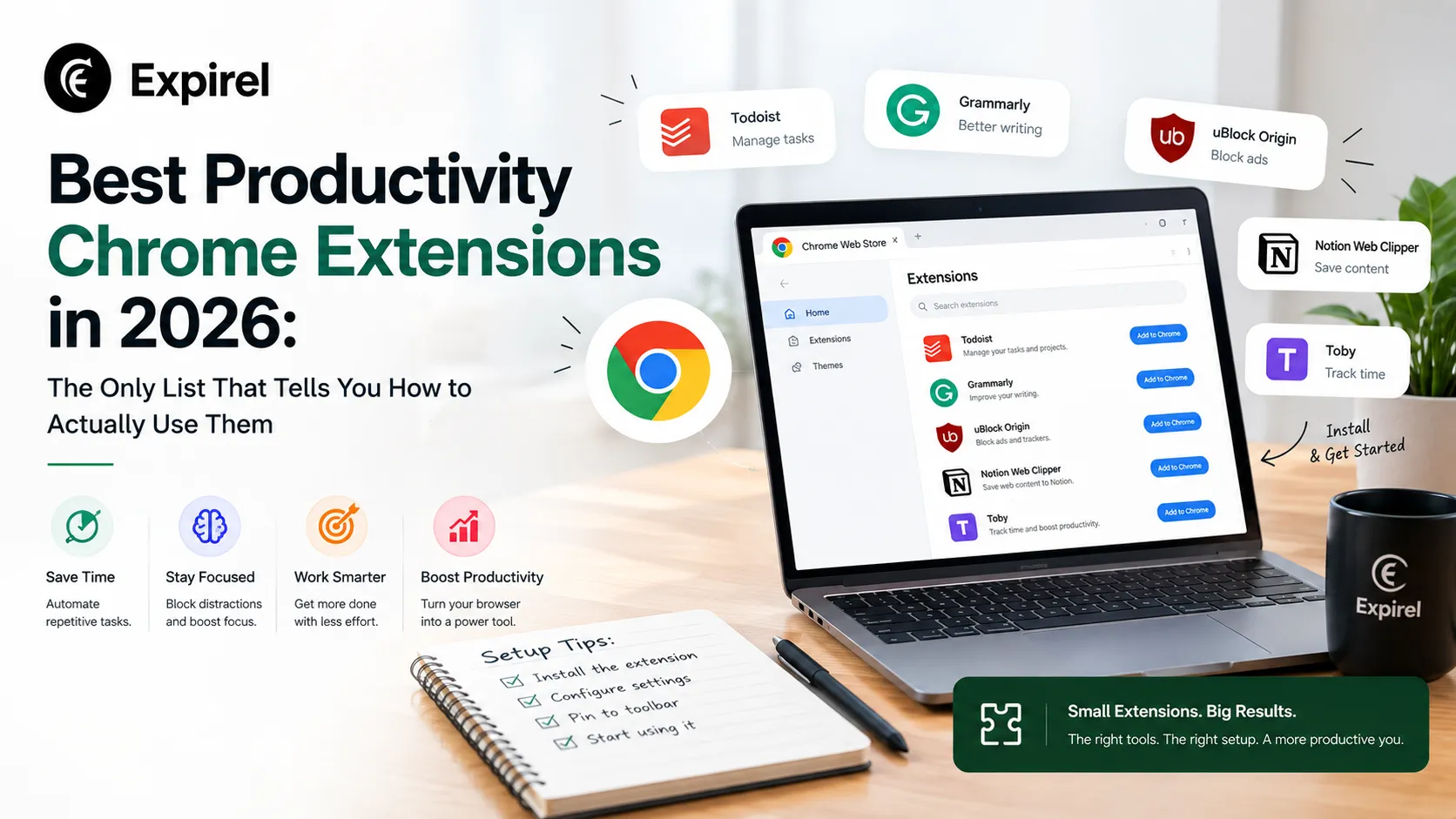
Finding the best productivity Chrome extensions is easy. Every list article gives you the same 15 tools in a slightly different order. What none of them tell you is which extensions genuinely move the needle for most people, which ones slow Chrome down and quietly kill the productivity gains they promised, and most critically, how to configure each one so it actually changes how you work rather than sitting unused in your toolbar for six months.
This guide covers all of that. The problem organizes it by the problem you are trying to solve rather than alphabetically or by category name, because the right extension depends entirely on your specific friction point. It clearly distinguishes between free and paid options, flags which tools consistently appear in recommendations from experienced users in productivity communities, and includes a setup tip for each one so you know exactly how to get value from it from day one.
If you install all of these at once, you will slow Chrome down and use none of them properly. Building better personal growth habits around your tools matters more than the tools themselves. Read the guide, identify your biggest productivity leak, and install one or two extensions that address it directly.
The best productivity Chrome extensions in 2026 are: StayFocusd (free distraction blocking), OneTab (free tab overload), Toggl Track (free time awareness), Grammarly (free and paid writing quality), and Momentum (free and paid intentional start to every browsing session). The single highest-impact free option for most people is StayFocusd paired with OneTab together they address the two biggest productivity killers in a browser environment: distraction and cognitive overload from too many open tabs.
Why Most Best Chrome Extensions Lists Do Not Actually Help You
The problem with most best productivity Chrome extensions lists is that they treat the browser like an app store the more extensions you install, the more productive you become. This is wrong in two specific ways.
Extension bloat is a real performance problem. Every Chrome extension you install consumes memory and CPU resources. Chrome's built-in Task Manager (accessed by pressing Shift + Esc inside any Chrome window) shows you exactly how much RAM each active extension is using in real time, a feature documented in Google's own Chrome developer resources. In practice, a browser running 15 to 20 extensions typically shows measurably higher memory usage per the Task Manager than the same browser with 3 to 5 targeted tools. Slower page loads, longer startup times, and reduced battery life on laptops are the direct results.
Most extensions require configuration to work well. StayFocusd installed without blocked site lists does nothing. Toggl Track with no projects set up tracks time to nowhere useful. Momentum without a custom focus phrase is just a pretty clock. Installation is not adoption. Every extension in this guide comes with a specific setup step for that reason.
The Manifest V3 transition changed the landscape. Google rolled out Manifest V3 — the new extension framework for Chrome — progressively through 2023 and 2024. Some older ad blockers and content filters using the older Manifest V2 API were deprecated. If you installed extensions before mid-2023 and have not checked whether they updated to V3, some may be running on deprecated code. Check the Chrome Web Store for 'Updated' status on any extension installed more than 18 months ago.
The right number of productivity extensions for most people
Research on tool adoption consistently shows that adding more than 3 to 5 new tools simultaneously results in superficial use of all of them rather than deep use of any. For Chrome extensions specifically: install a maximum of one extension per problem category (distraction, tab management, writing, time tracking). Four well-configured extensions outperform twelve half-used ones every time.
Install fewer extensions and configure each one properly. Four focused, well-set-up tools will change how you work. Fifteen unused toolbar icons will not.
Best Productivity Chrome Extensions by Problem — Not by Category Name
Rather than organizing these tools alphabetically or by a generic category, this guide groups them by the specific productivity problem they solve. Identify your biggest friction point and start there.
Problem 1: You Waste Time on Distracting Websites During Work
Free. Widely used => ★ 4.4 — 700,000+ users
What it does: Limits the amount of time you can spend on specified distracting websites per day. Once the daily time allowance is exhausted, those sites are blocked for the rest of the day.
Why it makes the list: It is free, requires no account, and works entirely in the browser without sending data to any external server. The 'Nuclear Option' feature blocks all non-essential sites for a set period — useful for deep work windows that require zero distraction tolerance. Consistently recommended across productivity communities as the benchmark free distraction blocker for Chrome.
Setup tip: Block your three highest-distraction sites first (not 20 — three). Set a daily allowance of 15 minutes total across all blocked sites. Enable the Nuclear Option for your first 90-minute deep work block of the day to establish the pattern before reducing it gradually.
Unhook — Remove YouTube Recommendations
Free (premium available) Highly rated => ★ 4.9 — 1M+ users
What it does: Removes the YouTube homepage feed, recommended videos sidebar, and end-screen suggestions without blocking YouTube itself. You can still search for and watch specific videos — you simply cannot fall into the recommendation rabbit hole.
Why it makes the list: YouTube recommendations use a sophisticated engagement loop that routinely extends 5-minute searches into 90-minute sessions. Unhook eliminates the mechanism without eliminating the tool. For people whose work involves researching, creating, or reviewing video content, this is more useful than blocking YouTube entirely.
Setup tip: After installing, go to the Unhook settings and disable homepage feed, recommendations sidebar, and end-screen cards. Keep the search function active. This takes 30 seconds and immediately removes the largest time sink in most people's browser usage.
Cold Turkey Blocker
Free (Pro available) Bypass-resistant — check current rating on Chrome Web Store
What it does: Blocks specified websites and applications for a set time period. Unlike most browser-based blockers, Cold Turkey cannot be bypassed by uninstalling and reinstalling Chrome, disabling the extension, or using incognito mode during an active block — because the blocking operates at the system level, not the browser level.
Why it makes the list: This is the critical distinction from StayFocusd that experienced productivity practitioners on Reddit and other communities consistently point out. StayFocusd can be circumvented by a motivated but momentarily weak-willed user in under 30 seconds. Cold Turkey cannot. For people who find themselves disabling their own blockers during weak moments, Cold Turkey is the correct tool despite requiring a separate download for the desktop component to function at full strength. The Chrome extension alone handles web blocking.
Setup tip: Use Cold Turkey for your scheduled deep work blocks and StayFocusd for general daily limits. Cold Turkey's 'Frozen Turkey' mode (Pro) locks you out of everything except a whitelist use this only for your two most critical focus sessions per week, not as a default. Start with a 45-minute Cold Turkey block and extend gradually as the habit establishes.
Problem 2: Too Many Open Tabs Are Slowing You Down Mentally and Technically
Free. One of the most-installed tab managers in the Chrome Web Store => ★ 4.4 — 2M + users
What it does: Converts all open browser tabs into a single list with one click. The list is saved locally, and tabs can be restored individually or all at once. RAM usage drops immediately and dramatically.
Why it makes the list: One of the most consistently recommended free Chrome extensions across productivity communities. The reason is simple: it solves two problems at once: cognitive overload from visual tab clutter and technical performance degradation from too many active tabs. A browser with 30 active tabs uses significantly more RAM than the same session with those tabs stored in OneTab.
Setup tip: Create a habit of clicking OneTab at the end of every work session. Name each OneTab list before you close it ('Research 14 Jan' or 'Project X References') so you can find specific tabs later without opening everything. Review and delete OneTab lists weekly; hoarding tabs in OneTab defeats the purpose.
Workona Tab Manager:
Free (Pro plan available). Consistently well-rated; check current figures on Chrome Web Store
What it does: Organises browser tabs into named workspaces that can be saved, switched between, and shared. Each workspace represents a project or context: work, research, personal, and tabs stay contained within their workspace.
Why it makes the list: For people managing multiple simultaneous projects in the browser, Workona solves context-switching cost more effectively than OneTab alone. Switching between a client project and your own work becomes a single click rather than a search through 40 open tabs. The free tier supports up to five workspaces, which covers most individual use cases without a paid plan.
Setup tip: Create one workspace per active project (maximum five on the free plan). Assign a colour to each workspace. At the start of each day, open only the workspace you plan to work in first — not all of them simultaneously.
Problem 3: You Lose Track of Time and Cannot Measure Where Your Hours Go
Free (paid plans available) ★ 4.4 — 400,000+ users
What it does: A time tracking extension that lets you start and stop timers with one click, assign time to projects and clients, and view reports on how your hours are distributed across activities.
Why it makes the list: Time tracking reveals two things most people find genuinely surprising: how few actual focused work hours they log per day (typically 1.5 to 3 hours of real deep work, not the 6 to 8 they assume), and which activities consume disproportionate time relative to their value. Neither insight is available from memory or self-perception alone only from real tracking data.
Setup tip: Set up three projects before you start tracking: Deep Work, Communication, and Admin. Do not create more categories initially. Track honestly for two weeks without trying to improve. The data from those two weeks tells you more about your productivity than any advice article, including this one.
Free (paid plans available) Established tool — check current rating on Chrome Web Store
What it does: Automatically tracks which websites and applications you spend time on without requiring manual timer starts. Generates weekly productivity reports showing time by category: productive, neutral, and distracting.
Why it makes the list: Unlike Toggl Track (which requires you to start and stop timers), RescueTime runs passively in the background. For people who find manual time tracking too disruptive to sustain, RescueTime provides the same core insight into where your hours actually go without any behavioural change required. The trade-off is less granular project-level data.
Setup tip: After installing, check your first weekly report without making any changes to your behaviour. Treat the first week as a baseline measurement, not a performance test. The baseline is what makes every subsequent change measurable.
Problem 4: Poor Writing Quality Slows Down Communication and Damages Credibility
Free (Premium available) Most-installed writing assistant in the Chrome Web Store
What it does: Checks spelling, grammar, punctuation, clarity, and tone across every text field in Chrome emails, documents, social posts, and web forms. The free version covers essential grammar and spelling. Premium adds clarity suggestions, tone adjustments, and plagiarism checking.
Why it makes the list: Grammarly is included because it reduces the cognitive load of proofreading across every written communication. For people who write a significant volume of email, proposals, or documents in a browser environment, removing the mental overhead of error-checking frees attention for the actual content. Note: Grammarly does collect the text you write through its extension. If you handle highly sensitive or confidential information, check your organisation's data policy before using it.
Setup tip: On the free plan, enable suggestions for clarity and engagement in addition to grammar these are available free and catch structural problems beyond spelling errors. Disable Grammarly on sites where you handle confidential information by adding them to the excluded sites list in the extension settings.
LanguageTool
Free (Premium available) Widely used open-source alternative — check current rating on Chrome Web Store
What it does: An open-source grammar and style checker covering 30 languages. Functions similarly to Grammarly for spelling and grammar correction in browser text fields. The free tier is more generous than Grammarly's and the extension has a privacy-focused mode that processes text locally rather than sending it to external servers.
Why it makes the list: For users handling sensitive information who want writing assistance without cloud data processing, LanguageTool's local processing mode is a meaningful differentiator from Grammarly. It also handles multilingual writing more effectively — useful for teams working across European languages. The quality gap between LanguageTool free and Grammarly free has narrowed significantly since 2023.
Setup tip: Enable the privacy mode in settings if you work with confidential content. Set your primary language and add any technical terminology specific to your field to the personal dictionary to reduce false positives on specialist vocabulary.
What Is New in 2026: AI-Powered Chrome Extensions
Since 2023, a new category of productivity extensions has grown significantly in Chrome: AI writing and task assistants. These tools use large language models to help with email drafting, text summarisation, content generation, and in-page question answering. For a broader look at how AI productivity tools are evolving beyond browser extensions, see our guide to AI productivity tools and the latest tools worth using.
AI Chrome extensions in 2026: what they do and what to know
Compose AI autocompletes sentences and emails in real time as you type across Gmail, Google Docs, and web forms — useful for high-volume emailers. Merlin AI integrates a GPT-based assistant accessible via a keyboard shortcut on any webpage for summarisation, translation, and drafting. Monica provides a sidebar AI assistant with similar capabilities plus web search integration. All three have free tiers with usage limits. Critical caveat before installing any AI extension: every AI-powered extension sends the text you interact with to a third-party API for processing. Read each tool's privacy policy and data retention terms before installing, particularly if you handle client data, legal documents, or confidential business information. The capability gain is real the data handling implication is also real.
The honest verdict on AI extensions for most individual users in 2026: they are genuinely useful for email volume reduction and first-draft generation, but they introduce a privacy consideration that traditional productivity extensions (StayFocusd, OneTab, Momentum) do not. Use AI extensions for lower-sensitivity tasks first and evaluate the data handling policy before extending to confidential work. And since first drafts from these tools often read as generic, running them through an AI humanizer before you hit send keeps the final message sounding like you wrote it.
Problem 5: Every New Tab Pulls You Into Reactive Mode Before You Have Decided What to Do
Free (Plus available) One of the highest-rated new tab extensions in the Chrome Web Store
What it does: Replaces Chrome's default new tab page with a clean interface showing the time, a daily focus prompt asking 'What is your main focus today?', an inspiring background image, and a simple to-do list. The Plus version adds integrations with task managers, weather, and habit tracking.
Why it makes the list: The new tab page is opened dozens of times per day. By default, Chrome shows recently visited sites, which are almost always the sites that compete for your attention. Momentum replaces that trigger with a focus prompt. Over days and weeks, the repeated question 'What is your main focus today?' creates a micro-habit of intentional direction-setting every time you open a new tab.
Setup tip: Use the daily focus field for one specific task, not a category. 'Finish the Q3 report introduction' rather than 'Work.' The specificity of the focus prompt is what makes it actionable rather than decorative. Review what you typed at 4 pm and assess whether your day reflected it.
Top 5 Chrome Extensions for Productivity: Quick Reference Table
For readers who want a fast comparison across the extensions covered in this guide, here is the complete top 5 with the key decision factors:
Extension | Best for | Price | Privacy | Manifest V3 |
StayFocusd | Blocking distracting sites | Free | High — local only | Yes |
OneTab | Tab overload and RAM reduction | Free | High — local only | Yes |
Toggl Track | Manual time tracking by project | Free/Paid | Medium — cloud sync | Yes |
Grammarly | Writing quality across all fields | Free/Paid | Low — cloud processed | Yes |
Momentum | Intentional new tab behaviour | Free/Plus | Medium — account req | Yes |
Best Productivity Google Extensions: Tools Built by Google Itself
When people search for the best productivity Google extensions, some are looking specifically for tools built and maintained by Google rather than third-party developers. These are worth knowing separately because they carry zero privacy risk for Google account users (data stays within the Google ecosystem you already use), they are updated reliably, and they are free without feature limits.
Google Keep Chrome Extension
Free => Official Google product — built-in reliability
What it does: Saves any webpage, selected text, or image directly to Google Keep with one click. Notes are instantly accessible across all devices where you are signed into your Google account.
Why it makes the list: For researchers, students, and knowledge workers who use Keep as a note system, this extension eliminates the friction of switching to the Keep app to save something. Web content gets saved with the source URL automatically included — which means every saved note is traceable back to its origin without any manual work.
Setup tip: Create one Keep label per active project before you start clipping. Use the extension only to save content you will act on within 48 hours — not as a general archive. Review and clear your Keep inbox every Friday as part of your weekly shutdown ritual.
Google Docs Offline
Free => Official Google product
What it does: Enables editing of Google Docs, Sheets, and Slides without an internet connection. Changes sync automatically when the connection is restored.
Why it makes the list: For anyone who works on trains, planes, or in locations with unreliable wifi, this extension removes the single biggest limitation of browser-based document work. It requires Chrome and a Google account but no additional setup beyond installation and enabling offline mode in Google Drive settings.
Setup tip: After installing, go to drive.google.com → Settings → Offline → tick 'Create, open and edit your recent Google Docs, Sheets and Slides files on this device while offline.' This is a one-time setup. The extension then works passively with no further action required.
Google Dictionary
Free => Official Google product
What it does: Allows double-clicking any word on any webpage to see its definition, pronunciation, and etymology in a small popup without leaving the page or opening a new tab.
Why it makes the list: For writers, researchers, and non-native English speakers who encounter unfamiliar vocabulary frequently, this extension removes the tab-switching friction of looking up words. It sounds minor, but eliminating a repeated three-step action (open new tab, search, return) across dozens of daily lookups accumulates into measurable time saved over a working week.
Setup tip: No configuration required. Install and use immediately. The extension is passive; it only activates when you double-click a word.
Google's own Chrome extensions offer the highest reliability and lowest privacy risk for Google account users. They lack the sophistication of specialized third-party tools but require zero configuration and never need privacy policy review.
What Productivity Communities Say About Chrome Extensions: Patterns From Real Users
Discussions about best productivity Chrome extensions on communities like Reddit's r/productivity and r/chrome consistently reveal a different picture from curated lists. Real users people who have actually lived with these tools for months or years tend to converge on a few consistent patterns worth knowing before you install anything.
Distraction blockers are the most frequently recommended category by experienced productivity practitioners, above any other tool type. StayFocusd, Cold Turkey, and Freedom appear repeatedly not because they are the most sophisticated tools, but because distraction is almost always the most immediately costly productivity problem for anyone working primarily in a browser.
The extensions with the longest staying power in user setups are the simplest ones. OneTab, StayFocusd, and Momentum consistently appear in 'still using after 2 years' threads. Complex extensions with extensive dashboards (some AI writing assistants, elaborate new tab replacements) get uninstalled within weeks.
Privacy concerns appear consistently in extension discussions. Experienced users frequently note that extensions handling text data grammar checkers, email assistants, clipboard managers should be evaluated for data handling policies before installation, particularly for professional use on sensitive material.
The consensus on quantity is clear: experienced users almost universally recommend fewer than five active extensions. The most common advice in productivity communities is not 'install more tools' but 'remove the ones you installed three months ago and stopped thinking about.'
The real-user test: 3 questions before installing any extension
What specific behaviour will change in my working day if I install this? (If the answer is vague, skip it.)
Does this extension process my data in the cloud, and is that acceptable given what I work on?
Am I installing this because I genuinely need it, or because a list told me it was popular? If the answer to question 3 is 'a list told me', read the extension's full description and reviews on the Chrome Web Store before installing.
Best Free Chrome Extensions for Productivity: What You Get Without Paying
Every extension on the top 5 list has a fully functional free version. Here is an honest assessment of what the free tier provides for each and where the paid upgrade genuinely adds value rather than just locking basic features behind a paywall.
StayFocusd: 100% free with no paid version. Full functionality including blocked sites, time limits, and the Nuclear Option is available at no cost. This is the strongest free offering of any extension in this list.
OneTab: 100% free with no paid version. All tab management, saving, and restoration features are available at no cost. OneTab is funded through an optional donation model.
Toggl Track (free): Unlimited time tracking, unlimited projects, and basic reporting are free. Paid plans add team features, client billing, and advanced reporting. For individual productivity use, the free tier provides everything needed.
Grammarly (free): Grammar and spelling checking is free. Clarity suggestions, tone detection, plagiarism checking, and advanced style recommendations require Premium ($12 per month, billed annually). For email and standard professional writing, the free tier is genuinely useful. Premium is worth it for people writing long-form content or proposals regularly.
Momentum (free): The daily focus prompt, background image, and basic to-do list are free. Momentum Plus ($3.33 per month) adds integrations with Asana, Todoist, Google Tasks, weather, and additional widget customisation. The free version is sufficient for most individual users.
All five top extensions in this guide are fully usable for free. You do not need to spend anything to build a significantly more productive browser environment. Pay only when a specific paid feature directly addresses a specific problem you have identified in your workflow.
How to Set Up Chrome Extensions for Maximum Productivity Impact
Installing an extension takes 30 seconds. Configuring it to work for your specific context takes 5 to 10 minutes and produces 90 percent of the total benefit. Most people skip the configuration step entirely, which is why most extensions get uninstalled within a month.
Open the Chrome Web Store (chrome.google.com/webstore) and search for the extension by name. Read the description, check the last update date, and look at the developer's privacy policy link before installing. Extensions not updated in over 18 months or without a published privacy policy should be skipped.
After installation, click the extension icon in the toolbar immediately and open Settings or Options. Do not use the extension in its default state — the default settings are designed for the average user, not your specific workflow.
Configure the one most important setting for each extension before closing settings: for StayFocusd, add your three highest-distraction sites; for OneTab, create your first named list; for Toggl Track, create your three project categories; for Grammarly, add confidential sites to the excluded list; for Momentum, type your first daily focus.
Pin the extension to your Chrome toolbar (click the puzzle piece icon → pin). An extension buried in the overflow menu gets used rarely. Visible tools become habits.
After 14 days of use, evaluate each extension with one question: has my behaviour measurably changed because of this tool? If yes, keep it. If no, uninstall it regardless of how highly recommended it is. The right extension for someone else may not be the right one for you.
Track your extension habits with Expirel
The most common reason productivity extensions stop being used is that they require a daily action — and that action gets skipped on busy days. Pairing your browser extensions with daily personal growth exercises keeps the micro-habits alive even when motivation is low. Log each extension-based habit in Expirel's Habit Tracker 'Toggl timer started for first task,' 'OneTab cleared at end of session,' 'Momentum focus set,' and the visible streak keeps the micro-habit alive. The extensions do their job. The tracker ensures you actually use them.
Best Chrome Extensions by Who You Are: Persona-Based Recommendations
The best setup depends on your work context. Here are three specific extension combinations for three common user types, each using only free tools and kept to a maximum of four extensions to avoid bloat.
Your profile | Extension 1 | Extension 2 | Extension 3 | Extension 4 |
Student | StayFocusd — blocks social media during study sessions | Momentum — daily study goal on every new tab | LanguageTool — essay grammar checking (local processing) | Toggl Track — tracks time per subject to show where hours go |
Remote worker | OneTab — clears tab overload from multiple projects | Toggl Track — logs billable and non-billable hours | Grammarly — professional email and document quality | Workona — separates client workspaces in one browser |
Writer / creator | Cold Turkey — hard block during deep writing sessions | Momentum — single writing goal per session | Grammarly or LanguageTool — style and grammar | Toggl Track — tracks actual writing hours vs editing hours |
Developer | StayFocusd — limits distraction during coding sessions | OneTab — consolidates research and documentation tabs | Workona — separates project environments by workspace | RescueTime — passively tracks time across tools and sites |
Manager / executive | Momentum — daily priority set on every new tab | Toggl Track — measures time in meetings vs focused work | Grammarly — quality control across all written communication | Unhook — removes YouTube recommendation rabbit holes |
Every combination above uses only free tiers and stays within four extensions to maintain browser performance. The key principle: match the extension to your dominant friction point. If you are unsure what that friction point is, the personal growth coach guide walks through how to identify it, not to what a generic list recommends.
Mistakes People Make With Productivity Chrome Extensions
Installing extensions they saw on a list without identifying the problem first. The correct sequence is: identify your specific productivity leak, then find the tool that addresses it. The reverse installing a popular tool and hoping it helps produces a cluttered toolbar and no behaviour change.
Leaving extensions installed after they stop being used. An unused extension still consumes memory and occasionally requests permission updates. Audit your installed extensions every 90 days:
chrome://extensionsin the address bar. Remove anything you have not actively used in the past month.Using a productivity extension during the tool's setup phase as a reason to avoid actual work. Configuring StayFocusd for an hour, reading five reviews of Toggl Track, and customising Momentum themes are all forms of productive-feeling procrastination. Install, configure once, use. The tool itself is not the work.
Not checking privacy policies before installing text-processing extensions. Grammar checkers, clipboard managers, and AI writing assistants process everything you type through the extension. For any extension that handles text, read the privacy policy before installation and check whether your employer has a policy on browser extension data sharing.
Expecting extensions to compensate for a poorly structured workday. No Chrome extension fixes a fundamental problem with how your day is organised. Extensions are multipliers; they make a good system better. They do not create a system where none exists. If your workday is reactive and unstructured, build the structure first (a productivity recipe framework works well) and add the extensions after.
Final Thoughts
The best productivity Chrome extension for you is the one that addresses your specific friction point and that you will actually configure and use consistently. If distraction is your biggest problem, start with StayFocusd. If tab overload is slowing you down mentally and technically, start with OneTab. If you have no idea where your working hours go, start with Toggl Track for two weeks before changing anything else.
Install one extension this week, configure it properly within 10 minutes of installation, and use it consistently for 14 days before evaluating whether to add a second. That approach produces lasting change. Installing eight extensions from a list produces a busy toolbar and no measurable improvement to how you work.
Frequently Asked Questions
Q: What are the best productivity Chrome extensions in 2026?
The five best productivity Chrome extensions in 2026 are StayFocusd (distraction blocking, free), OneTab (tab management, free), Toggl Track (time tracking, free), Grammarly (writing quality, free and paid), and Momentum (intentional new tab behaviour, free and paid). All are fully functional on their free tiers, all have been updated for Chrome's Manifest V3 framework, and all address the four most common browser-based productivity problems: distraction, cognitive overload, time blindness, and reactive browsing habits.
Q: What does Reddit recommend for productivity Chrome extensions?
Reddit's r/productivity community most consistently recommends Cold Turkey Blocker and StayFocusd for distraction blocking Cold Turkey for its bypass-resistance, StayFocusd for its simplicity. OneTab appears repeatedly for tab management. Toggl Track is the most recommended time tracker. The consensus across experienced practitioners: install fewer than five extensions, remove any unused for 30 days, and configure each one before relying on it. Simple, well-configured tools consistently outperform complex ones in long-term real-user setups.
Q: Are there good free Chrome extensions for productivity?
Yes, the best free Chrome extensions for productivity are StayFocusd (entirely free, no paid version), OneTab (entirely free), and the free tiers of Toggl Track and Momentum. These four tools together address the most common browser productivity problems at zero cost. Grammarly's free tier covers grammar and spelling checking for standard professional writing without a paid subscription.
Q: What is the best Chrome extension to increase productivity for students?
For students, the highest-impact combination is StayFocusd (blocks distracting sites during study sessions), Momentum (replaces new tabs with a focus prompt and study goal), and Toggl Track (tracks time per subject to identify where study hours actually go). All three are free. LanguageTool free is a strong alternative to Grammarly for essay writing given its more generous free tier and local processing mode.
Q: Do Chrome extensions slow down my computer?
Yes, every installed extension uses RAM and processing power regardless of whether you are actively using it. A browser with 15 to 20 extensions running simultaneously can use 30 to 50 percent more memory than the same browser with 3 to 5 targeted tools. The practical rule is to install a maximum of five to six extensions and audit the full list every 90 days at chrome://extensions to remove anything unused.
Q: What is Manifest V3 and should I be concerned about it for my extensions?
Manifest V3 is Google's updated framework for Chrome extensions, rolled out progressively from 2023. Extensions built on the older Manifest V2 were deprecated and stopped working in standard Chrome builds from mid-2024 onward. All five extensions in this guide have been updated to Manifest V3. For any extension installed before mid-2023, check its Chrome Web Store listing for a recent update date. If it has not been updated since 2022, it may no longer function correctly.
Q: What are the best productivity Google extensions built by Google?
Google's own productivity Chrome extensions include Google Keep (saves webpages and text directly to Keep with one click), Google Docs Offline (enables editing Docs, Sheets, and Slides without internet), and Google Dictionary (double-click any word for an instant definition). All are free, require no privacy policy review for Google account users, and are updated reliably. They lack the specialization of third-party tools but are the lowest-friction productivity options available in Chrome.
Q: Which Chrome extension is best for time tracking?
Toggl Track is the best Chrome extension for time tracking for most individuals it provides one-click manual time tracking, project categorisation, and basic reporting on the free plan. For passive automatic tracking without manual timers, RescueTime is the better option. The choice depends on whether you want to actively record what you are doing (Toggl) or automatically capture what you actually do (RescueTime).
Q: Is Grammarly safe to use for professional work?
Grammarly processes the text you type through its cloud servers. For standard professional writing emails, proposals, reports that do not contain legally privileged, medically confidential, or client-confidential information, Grammarly is generally considered acceptable. For sensitive material, either use Grammarly's excluded sites list to disable it on specific platforms, or use LanguageTool's local processing mode, which handles text on your device without sending it to external servers.
Q: How many Chrome extensions should I install?
Install a maximum of four to six extensions for productivity purposes. Experienced practitioners consistently recommend fewer tools used consistently over many tools used occasionally. The most productive browser setup is not the one with the most extensions it is the one where every installed extension addresses a specific, identified problem and is used as part of a daily routine.

Fahad Ahmad
Founder of EXPIREL · Digital Entrepreneur · Product Management Specialist
Fahad Ahmad is the founder of EXPIREL and a digital entrepreneur with over 10 years of experience in SaaS development, SEO, and digital product creation. He focuses on building practical solutions that help individuals and businesses manage product expiration dates, organize inventory, track habits, and improve daily productivity.
Through EXPIREL, Fahad shares actionable guides, product management tips, barcode scanning tutorials, and research-backed insights designed to help users reduce waste, stay organized, and make smarter decisions.
Related Articles
View all
70+ Productivity Tips and Hacks That Actually Work in 2026 (For Work, Students, ADHD, and Remote Workers)
June 24, 2026
Most productivity systems fail in 30 days. Here are 70+ tips and hacks built for how you actually work, covering ADHD, remote work, students, & office workers.
11 Best Social Media Productivity Tools to Save Time in 2026
October 12, 2026
Compare 11 social media productivity tools for 2026 that save time on routines, scheduling, design, automation, video, analytics, and link tracking.

Best Productivity Apps for Medical Students in 2026: Pick by Stage
October 9, 2026
Find the best productivity apps for medical students in 2026: free picks, a stack for each stage, tools for doctors, and how to protect patient privacy.